Create a Custom AI Assistant
Purpose
This page has information on how to get started creating your own OpenAI Assistant in ChatGPT. I’ve included details about two potential paths that can be taken, each with its own strengths (💪) and challenges (🧗♂️). Before creating your first AI assistant, consider both paths and how each aligns with your goals.
Both paths will require a ChatGPT Plus account and result in an AI assistant that leverages retrieval-augmented generation (RAG) techniques to empower your assistant to quickly search through and summarize key information from a provided knowledge base.
The result of both paths will be a customized AI assistant with reduced hallucinations (an incorrect or misleading result) and you in control over how your assistant behaves.
If you prefer a PDF version of this information, select here.
Navigation
Path 1: Create an AI Assistant in ChatGPT Editor
Reference Guides
Strengths
💪 No coding skills needed
💪 Adding and testing function calls to external APIs is simplified
💪 Can be quickly shared with other ChatGPT Plus users
💪 Includes learner file upload and voice mode
💪 Unlimited usage
Challenges
🧗♂️ Less options for customization such as model choice and temperature
🧗♂️ Cannot be embedded on a page
🧗♂️ Learners must have a ChatGPT Plus account

Path 2: Create an Assistant in OpenAI Playground
Reference Guides
Strengths
💪 Greatest degree of customization to calibrate responses
💪 Can be used to architect an assistant for use in custom applications
💪 Can be embedded into HTML based documents
💪 Users without a ChatGPT account can use the assistant
Challenges
🧗♂️ Adding function calls to external APIs requires a higher level of technical knowledge
🧗♂️ Sharing the assistant with learners requires a web page and basic front end development skills
🧗♂️ File upload and voice control is more challenging to implement
🧗♂️ Assistant owner is billed based on the amount of usage

Path 1: Create an AI Assistant in ChatGPT Editor
This path will result in an OpenAI Assistant that can be shared with other ChatGPT Plus users.
To build your own assistant in ChatGPT Editor:
Sign up or sign into ChatGPT Plus by selecting this link.
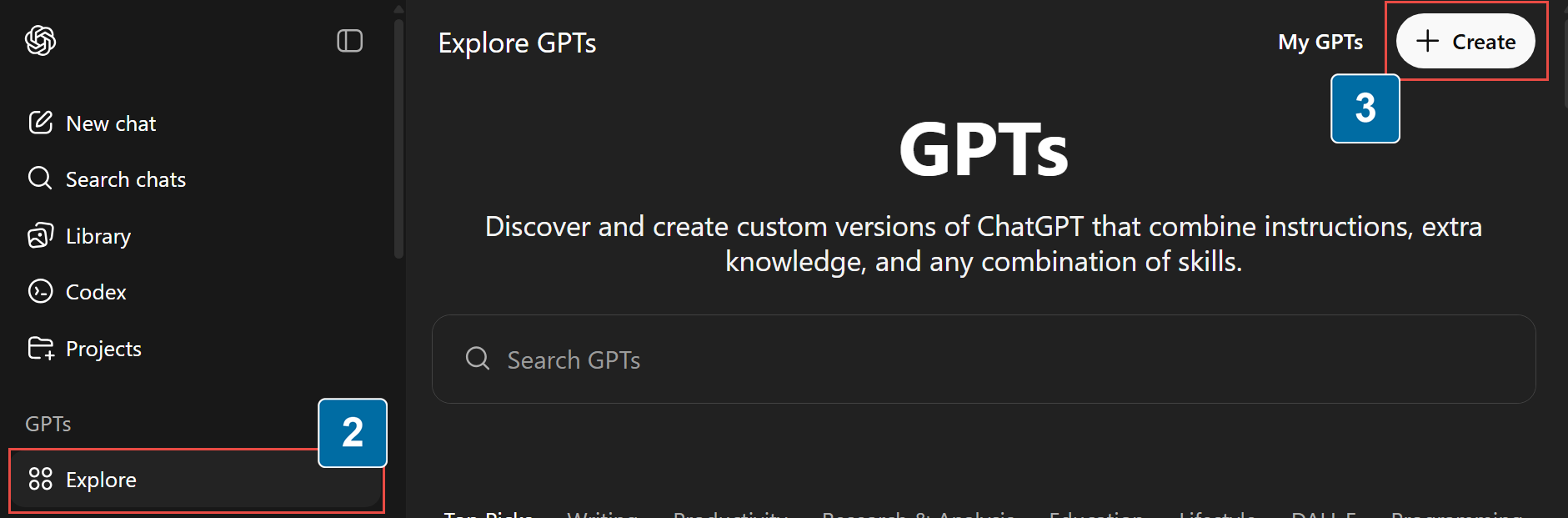
Access Explore GPTs page.
Select + Create.
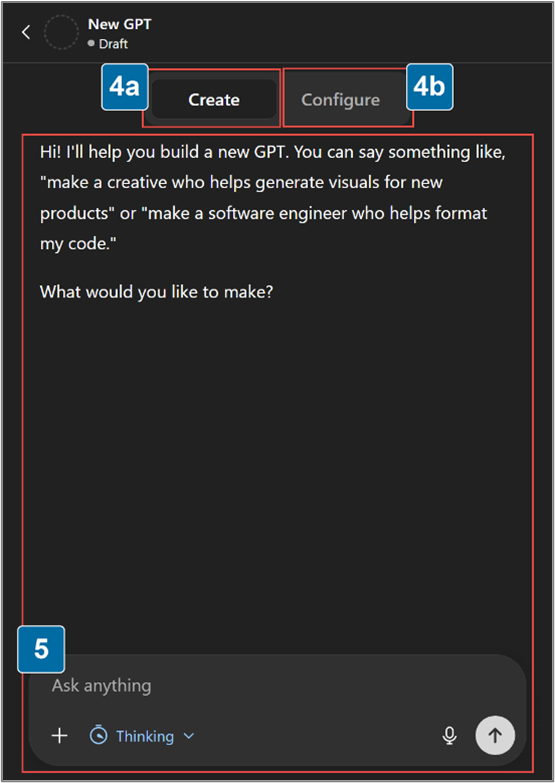
From here you can either:
a. Create an assistant with the help of a GPT assistant.
b. Configure an assistant manually.
If using the Create option, work with the assistant to define the context, objective, style, tone, audience, and response (COSTAR) elements, then continue to step 15.
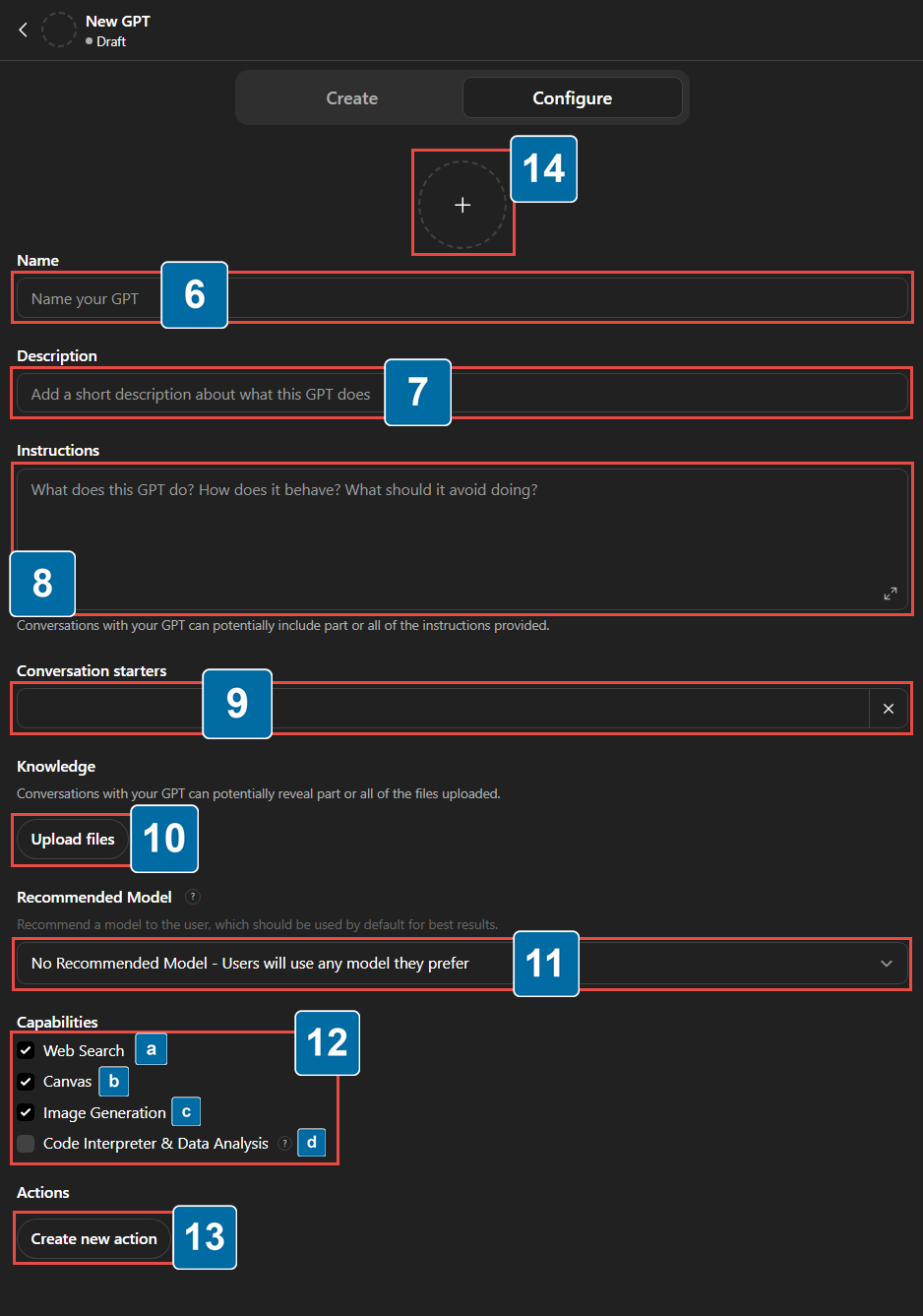
See COSTAR template example.If you use the Configure option, enter a Name for the Assistant.
Add a Description of what this assistant does.
Craft the Instructions that help form the basis of an assistant’s behavior.
(Optional) Include any conversation starters.
Select Upload files to add any knowledge to be used for RAG.
Select a Recommended Model.
Select the desired Capabilities.
a. Web Search – Allows assistants to search the web for context to answer questions.
b. Canvas – Allows for a more dynamic and user-friendly experience in the chat.
c. Image Generation – Allows the assistant to generate images.
d. Code Interpreter & Data Analysis – Allows assistant to write its own code to answer complex questions related to data analysis
(Optional) Select Create new action to build a set of custom actions for your assistant, including API calls.
Select the + symbol in the circle to generate or upload an image for your assistant.
Test the assistant’s behavior to ensure its outputs align with your expected user experience.
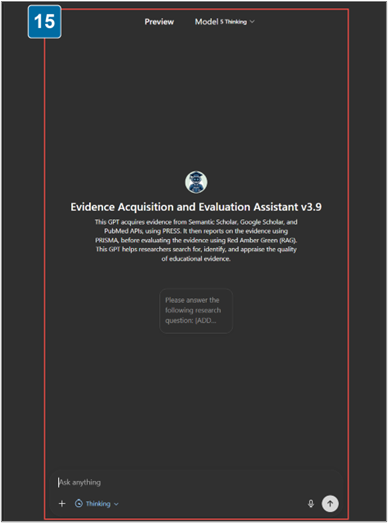
Publish and Share an AI Assistant Created in ChatGPT Editor
To publish and share your assistant:
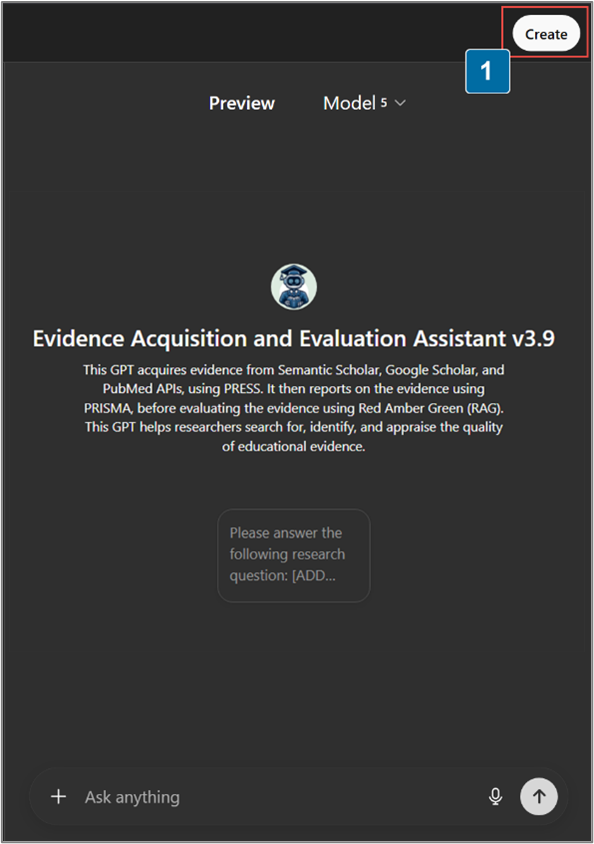
From the Edit Assistant screen, select Create.
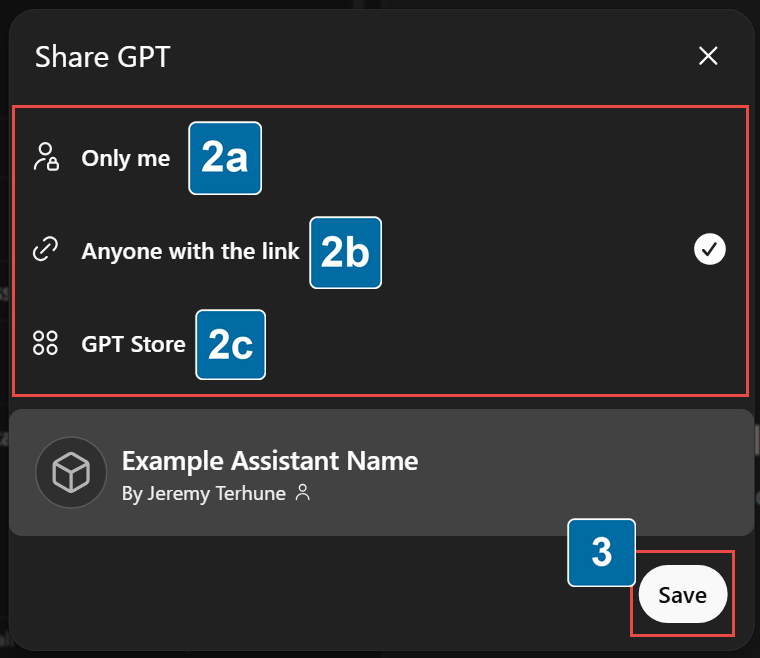
Choose Select how you wish to share:
a. Only me – Published only for you.
b. Anyone with a link – Hidden to everyone, but accessible to anyone with a link.
c. GPT Store – Visible to everyone who accesses the GPT Store.
Select Save.
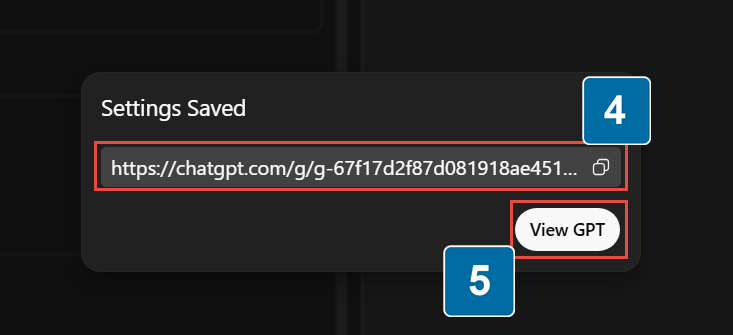
Copy the URL from the address bar.
Select View GPT to access the published assistant.
Send the URL to your learners.
Path 2: Create an AI Assistant in OpenAI Playground
This path will result in an OpenAI Assistant that is modular and can be built into a custom application or connected to other platforms and tools like Predictable Dialogs. These assistants can be shared with anyone who has access to the custom application or front end implementation.
To build your own assistant in Playground:
Sign up or sign into ChatGPT Plus by selecting this link.
Access the OpenAI Playground.
In the left navigation panel, select Assistants.
Enter a Name for your assistant.
Provide your assistant with specific Instructions on what you want it to do and how you want it to respond to you. See COSTAR template example.
Select the Model you wish to use, gpt-4.1 is currently the most advanced (and cheapest) option from OpenAI that supports RAG and is available in the playground.
Enable File search.
Select + Files to choose the files this assistant should use to answer questions and inform its output.
Enter your message to your Assistant.
Select Run to start testing responses.
Iterate on the instructions until you are satisfied with the assistant’s responses.

Connect AI Assistant to Predictable Dialogs
Now that you have an assistant with instructions and a knowledge base to search from, it’s time to make that assistant visible to your learners. There are several ways to do this through custom front ends or applications that support custom LLMs. For this example, I’ll explain how you can do this using a tool called Predictable Dialogs, which helps close the gap of needing a custom front end by providing a turn key solution to allow easy embedding of your assistant in a web-based document. It can even generate reports on conversations users have with your AI Assistant!
Part 1 - Create an OpenAI API Secret key
Navigate to the OpenAI API Key page.
Select Create new secret key.
Name the OpenAI Key.
Select Default Project.
Select Create secret key.
Copy secret key.
Save your secret key in a secure location.


Part 2 - Retrieve your OpenAI Assistant ID
Access the OpenAI Playground.
Select your assistant from the drop down menu.
Below the assistant’s name, copy the assistant ID.
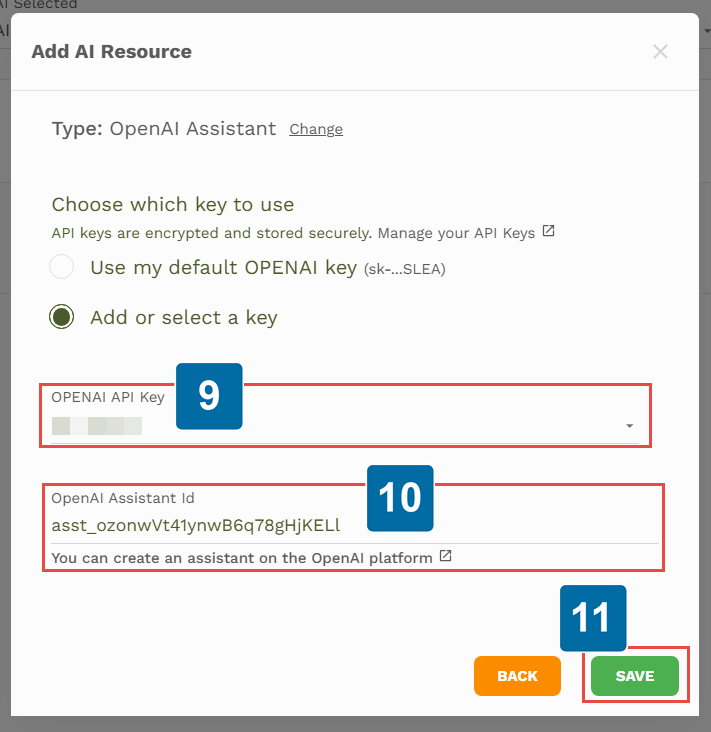
Example: asst_ozonwVt41ynwB6q78gHjKELl

Part 3 - Connect to Predictable Dialogs
Sign up or sign into Predictable Dialogs as a free account.
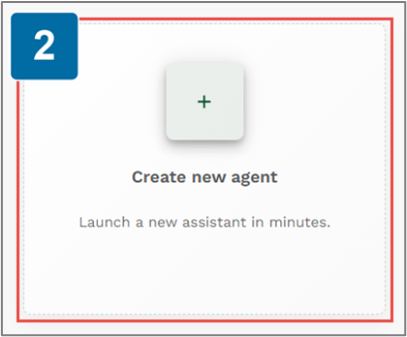
Select Create new agent.
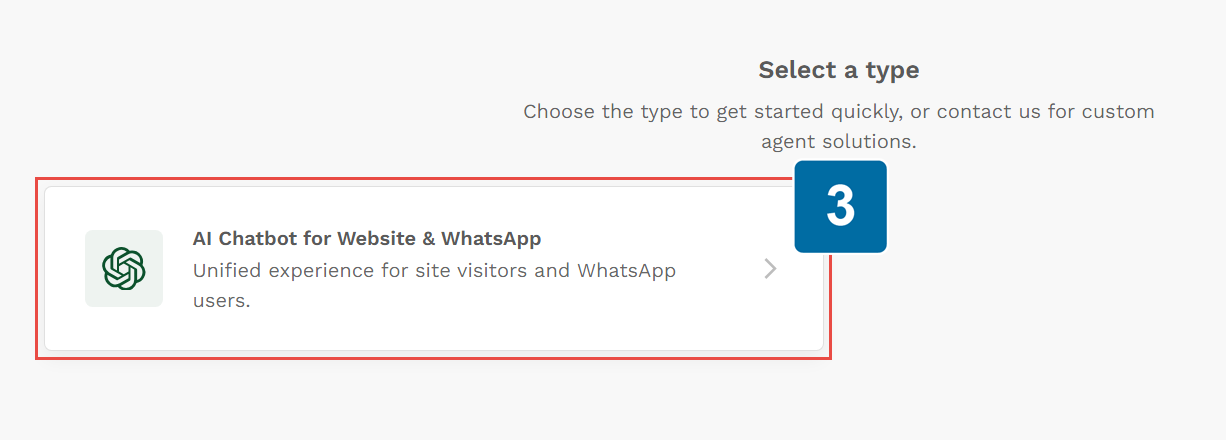
Select AI Chatbot for Website & WhatsApp.
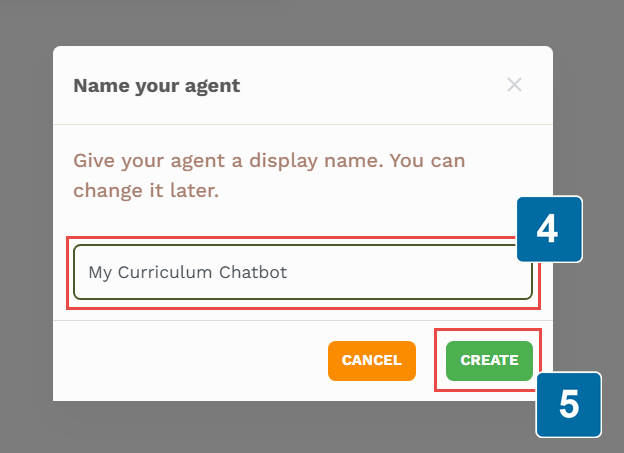
Enter Name of newassistant.
Select Create.
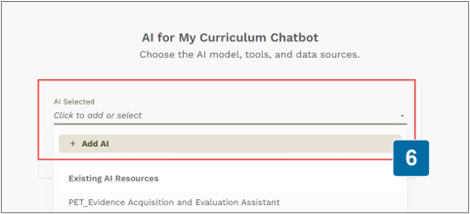
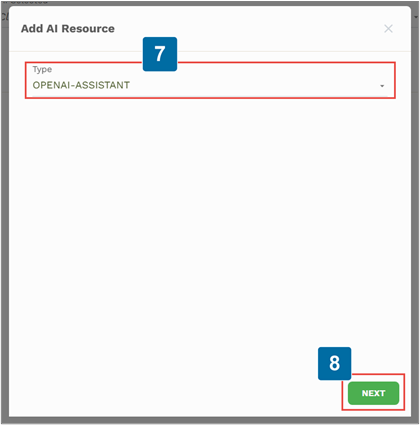
Select + Add AI.
Choose OPENAI Assistant as the Type.
Select Next.
Enter your OpenAI API Key.
Enter your OpenAI Assistant ID.
Select Save.
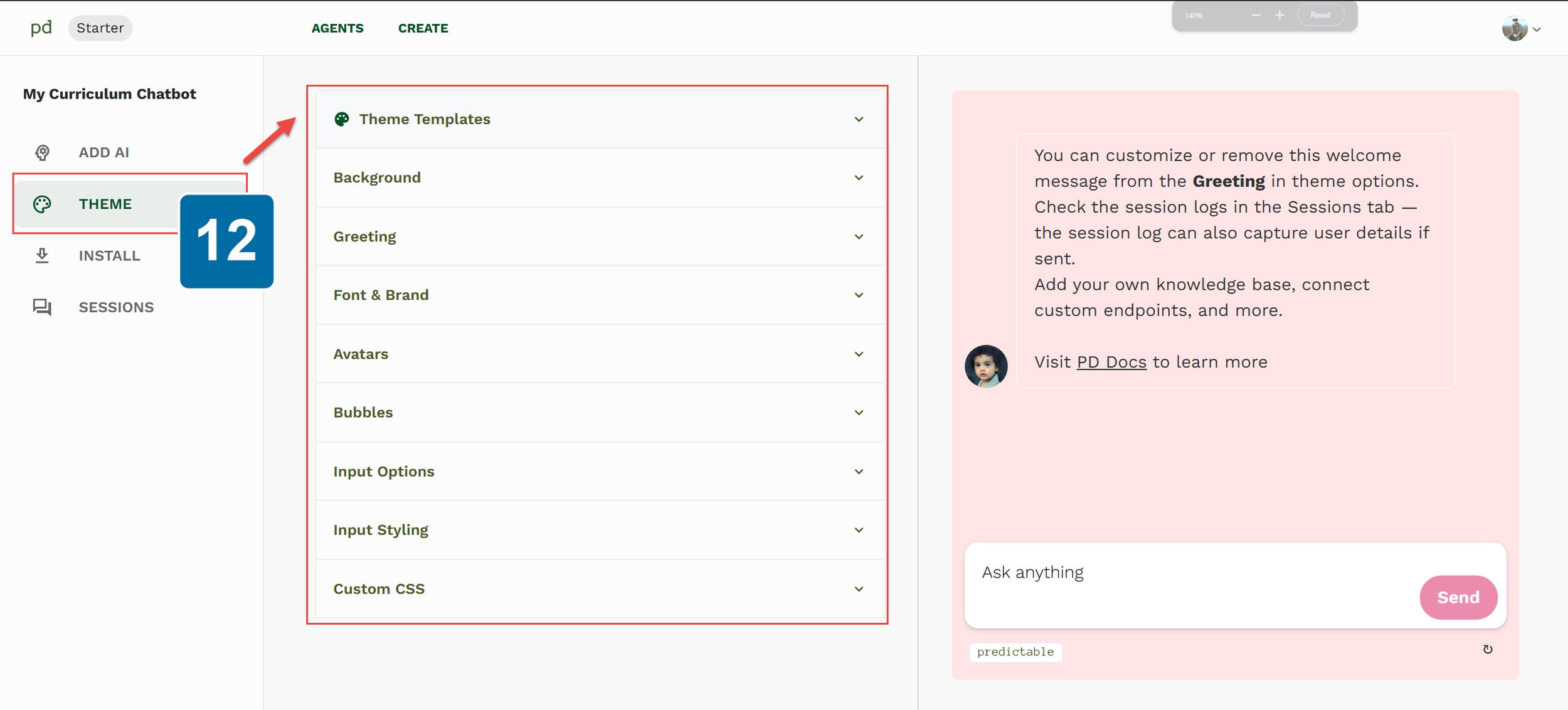
Choose a Theme Template or customize
each theme element.Visit the Predictable Dialog Docs to learn more about theming.
Part 4 - Embed the Assistant in an HTML Document
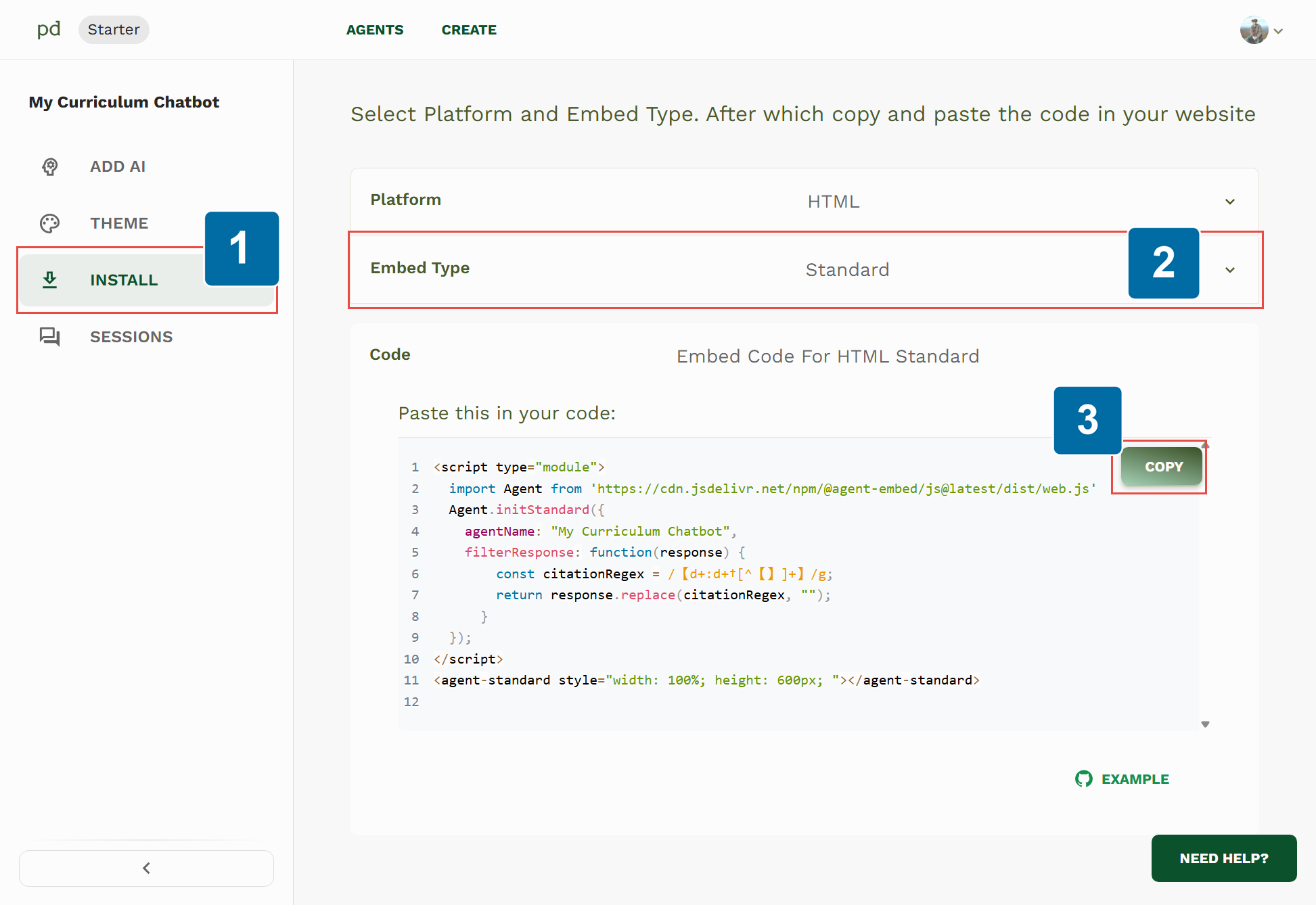
Select the Install tab.
Choose your preferred embed type, Standard, Bubble, or Popup.
Copy the script code.
Paste the code into your HTML based document.